Compound Medications
H2H Digital Rx – Compound Medications
H2H Digital Rx Compound Medications feature is designed to help prescribers create and transmit custom-formulated medications based on individual patient needs, while reducing manual effort and improving overall prescribing workflow efficiency.
The feature enables prescribers to create custom formulations, including allergen-free bases, patient-specific strengths, and alternate dosage forms such as creams, liquids, or suppositories. Prescribers can capture the complete formulation, including ingredients, strengths, dosage form, directions, and route, and electronically transmit the prescription to compounding pharmacies through Surescripts. When the compound contains a controlled substance, the prescription can be securely signed using EPCS two-factor authentication.
The feature is designed to:
- Create custom-formulated medications based on individual patient needs
- Capture the complete compound formulation, including ingredients, strengths, dosage form, route, and directions
- Support alternate dosage forms such as creams, liquids, suppositories, and other patient-specific formulations
- Improve prescription accuracy by ensuring all required compound details are captured before transmission
- Electronically route compound prescriptions to appropriate compounding pharmacies through Surescripts
- Provide EPCS two-factor signing when the compound contains a controlled substance
Key Benefits –
[A] Flexible Compound Prescription Creation:
Providers can create custom-formulated medications based on specific patient requirements, including allergen-free bases, patient-specific strengths, and alternate dosage forms.
Benefits:
- Supports individualized patient treatment
- Greater flexibility in medication formulation
- Reduced manual effort in creating compound prescriptions
[B] Complete Formulation and Prescription Accuracy:
The platform allows providers to capture the complete compound formulation before transmission.
The platform captures:
- Ingredients
- Ingredient strengths
- Dosage form
- Route of administration
- Directions/SIG instructions
- Patient-specific formulation requirements
Benefits:
- More complete and accurate compound prescriptions
- Reduced pharmacy call-backs and prescription rework
- Improved communication with compounding pharmacies
[C] Electronic Routing to Compounding Pharmacies:
Compound prescriptions can be electronically routed to compounding pharmacies through Surescripts, helping streamline the prescription process and reduce manual handoffs.
Benefits:
- Faster prescription transmission
- Reduced manual processing
- Improved workflow efficiency
- Better connectivity with compounding pharmacies
[D] Controlled Substance Compliance:
When a compound contains a controlled substance, the platform supports secure EPCS two-factor signing before the prescription is transmitted electronically.
Benefits:
- Supports controlled substance prescribing requirements
- Improved prescription security
- Reduced compliance risks
- Clear provider authentication and accountability
[E] Guided Compound Prescription Workflow:
Instead of relying on manual processes, providers are guided through a structured workflow for creating, reviewing, signing, and transmitting compound prescriptions.
Workflow includes:
- Compound medication selection/creation
- Ingredient and formulation entry
- Dosage form, route, and directions entry
- Prescription review and provider adjustments
- EPCS two-factor signing, when applicable
- Electronic transmission to the compounding pharmacy
- Status feedback after send
Benefits:
- Consistent compound prescribing workflow
- Improved provider experience
- Reduced manual handoffs
- Clear accountability and auditability
Workflow Scenarios / How does it work?
The following sections explain how the workflow operates for standard medications and controlled-substance medications.
[A] Prescribing for Standard Medications
For non-controlled medications, the workflow follows a streamlined ePrescription process designed to enable faster and more efficient prescribing.
Step 1 – Login to the Application:
- The prescriber logs in to the DigitalRx application using valid credentials.
- After successful authentication, the prescriber is presented with the patient and prescription management interface.
Step 2 – Search and Select the Patient
- The prescriber searches for and selects the intended patient.
- Once the patient is selected, the patient’s demographic information, allergies, active medications, and other relevant clinical information are displayed.
- The prescriber proceeds to the New Rx Pad to create a new prescription.
Step 3 – Enable Compound Medication
- The Compound Medication option is available directly on the prescription screen. [Please refer marked area in below screen-print]
- On the New Rx Pad, the prescriber selects the Compound Medication option.
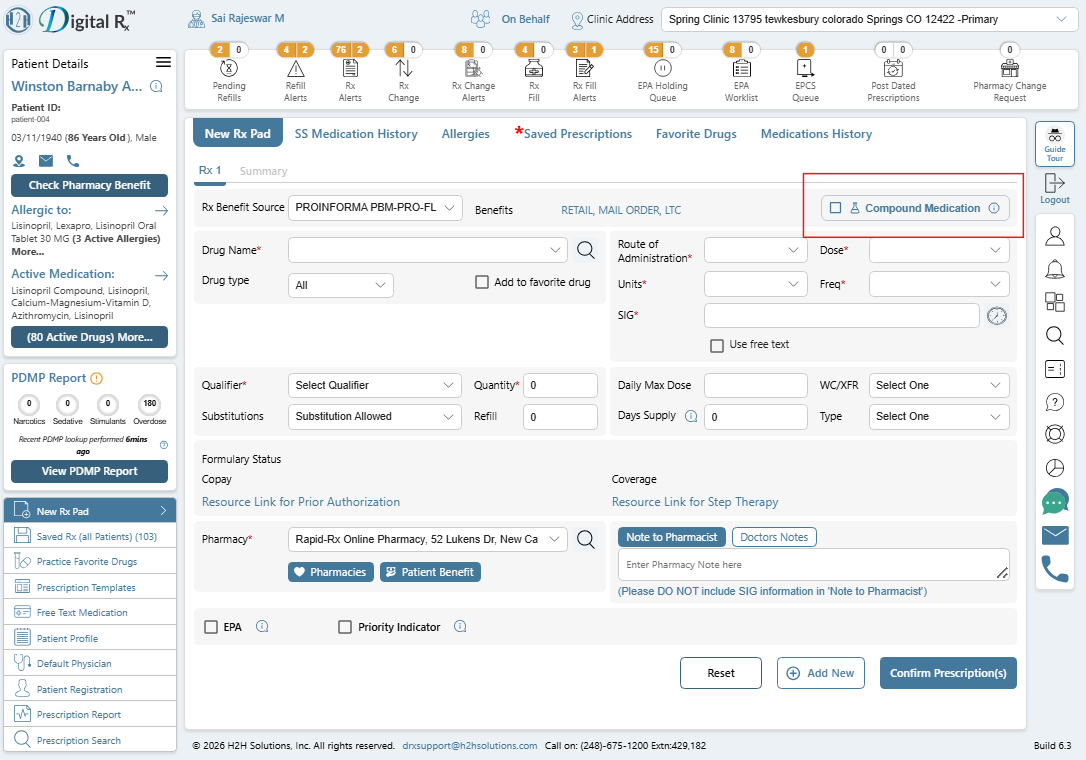
Upon selecting Compound Medication, the current New Rx Pad will transition to the Compound Medication Prescription screen. This will initiate the compound medication workflow and allow the prescriber to create a compound medication containing multiple ingredients.
The prescriber can click the “+” icon shown in the screen print below to open the Create Compound Medication dialog, where they can define and create the compound medication.
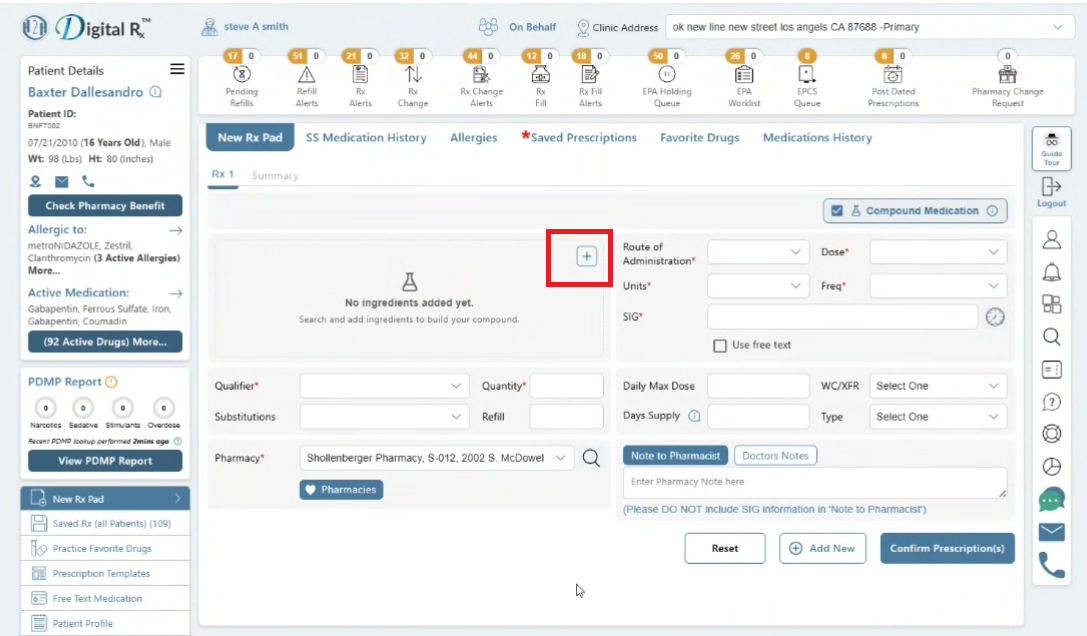
Step 4 – Create the Compound Medication
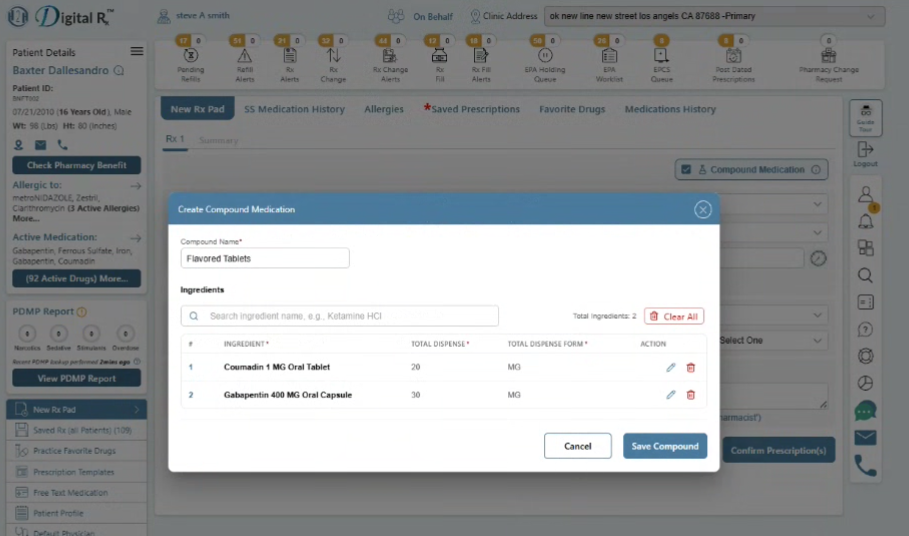
The Create Compound Medication dialog is displayed [Please refer to the screen print below].
The prescriber:
- Enters a name for the compound medication (e.g., “Flavored Tablets,” as shown in the screen print below).
- Searches for the required medication ingredients.
- Selects the required ingredients.
- Specifies the dispense amount and dispense unit/form for each ingredient, where applicable.
- Reviews the list of selected ingredients.
- Edits or removes individual ingredients, if required.
- Saves the compound medication by selecting Save Compound.
The application displays the total number of ingredients added to the compound. In the demonstrated workflow, multiple ingredients are included, such as Gabapentin 400 mg oral capsule and Coumadin 1 mg oral tablet, neither of which is a scheduled drug.
Ingredient Limit: The application supports up to 24 ingredients in a compound medication.
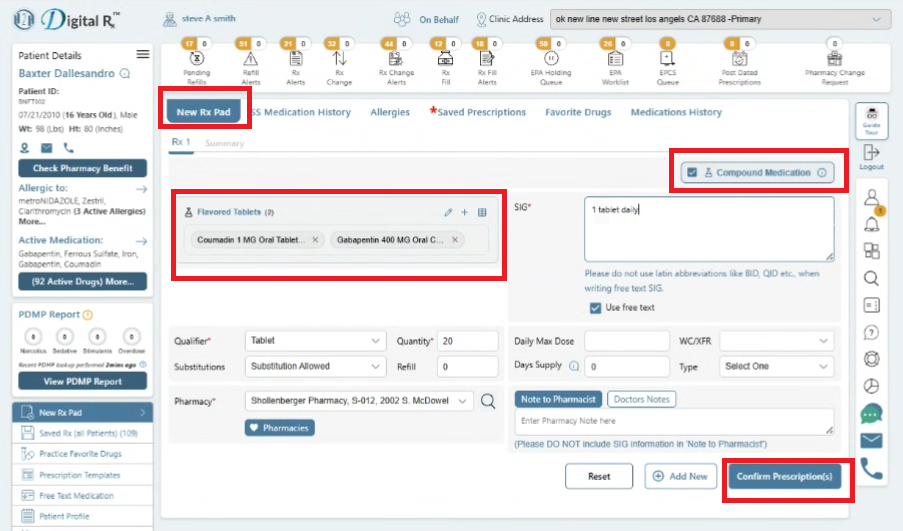
Step 5 – Review the Created Compound in the prescription screen.
After the compound medication is saved, it is displayed on the prescription screen as a single prescription item along with its associated ingredients, as shown in the marked area of the screen print below.
The prescriber can review the compound name and individual ingredients before completing the remaining prescription details.
Step 6 – Enter other prescription details
The prescriber completes the required prescription information for the compound medication.
The following information can be entered or selected, as applicable:
- Qualifier
- Quantity
- Refill
- Substitution
- Days Supply
- Type
- Route of Administration
- Dose
- Units
- Frequency
- SIG / Directions
The prescription quantity and days supply are entered based on the prescribed compound medication.
For SIG / Directions, the prescriber can select Use free text and enter complete patient-specific directions. The application also displays guidance advising the prescriber not to use unsupported Latin abbreviations when entering free-text SIG instructions.
Select the Pharmacy:
- The prescriber selects the intended pharmacy from the available pharmacy options.
- The selected pharmacy is displayed on the prescription screen before the prescription is confirmed.
- The prescriber verifies that the pharmacy information is correct before proceeding with the prescription.
Confirm the Prescription:
- After entering all required prescription information, the prescriber selects the Confirm Prescription button at the bottom of the screen.
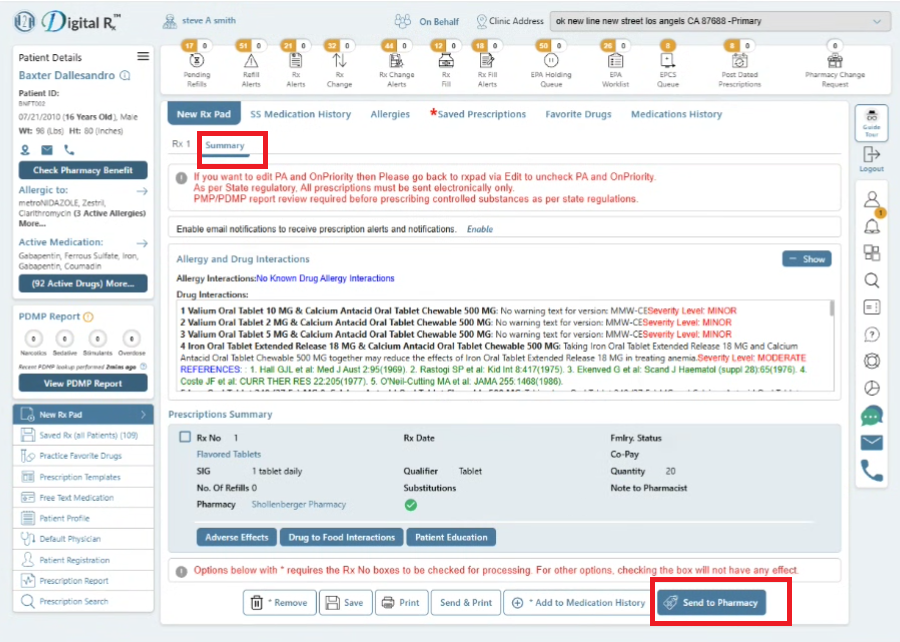
Step 7 – Prescription summary Screen
- The application validates the prescription and presents the prescription summary.
- The summary displays the compound medication, SIG, qualifier, quantity, refill information, pharmacy, and other prescription details.
| Note: Drug-Drug and Drug-Allergy Interaction Review
As part of the prescription confirmation workflow, the application performs drug-drug and drug-allergy interaction checks for the prescribed medication. The prescription summary includes an Allergy and Drug Interactions section that displays:
The prescriber reviews the displayed interaction information before proceeding with electronic transmission. In the demonstrated workflow, the application displays the allergy interaction status and multiple drug-drug interaction results, including the applicable severity information. This step provides the prescriber with an opportunity to review potential medication-related risks and take appropriate action before transmitting the prescription to the pharmacy. |
Step 8 – Send to Pharmacy
The prescriber selects the Send to Pharmacy button on the Summary screen to electronically transmit the compound medication prescription to the selected pharmacy.
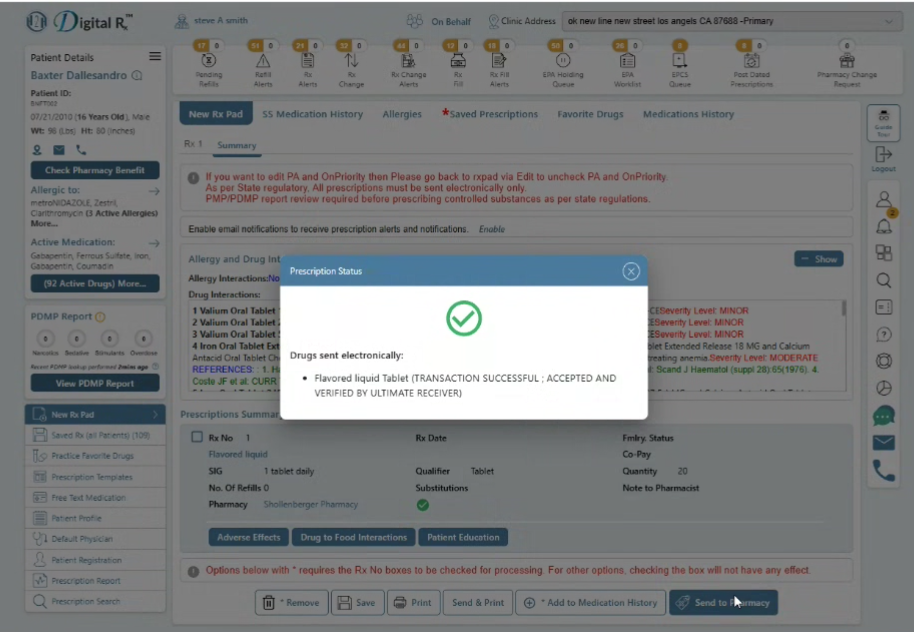
Since none of the compound medication ingredients are controlled substances, the application proceeds directly with the electronic prescription transmission without requiring additional authentication.
Upon successful transmission, the application displays a confirmation message, as shown in the screen print below.
[B] Prescribing for Controlled Substances
Prescribing controlled substances requires additional compliance measures and authorization steps to ensure the prescription is securely reviewed and transmitted in accordance with applicable e-prescribing regulatory requirements.
Step 1 – Log In to the Application:
- The prescriber logs in to the DigitalRx application using valid credentials.
- After successful authentication, the prescriber is presented with the patient and prescription management interface.
Step 2 – Search and Select the Patient
- The prescriber searches for and selects the intended patient.
- Once the patient is selected, the patient’s demographic information, allergies, active medications, and other relevant clinical information are displayed.
- The prescriber proceeds to the New Rx Pad to create a new prescription.
Step 3 – Enable Compound Medication
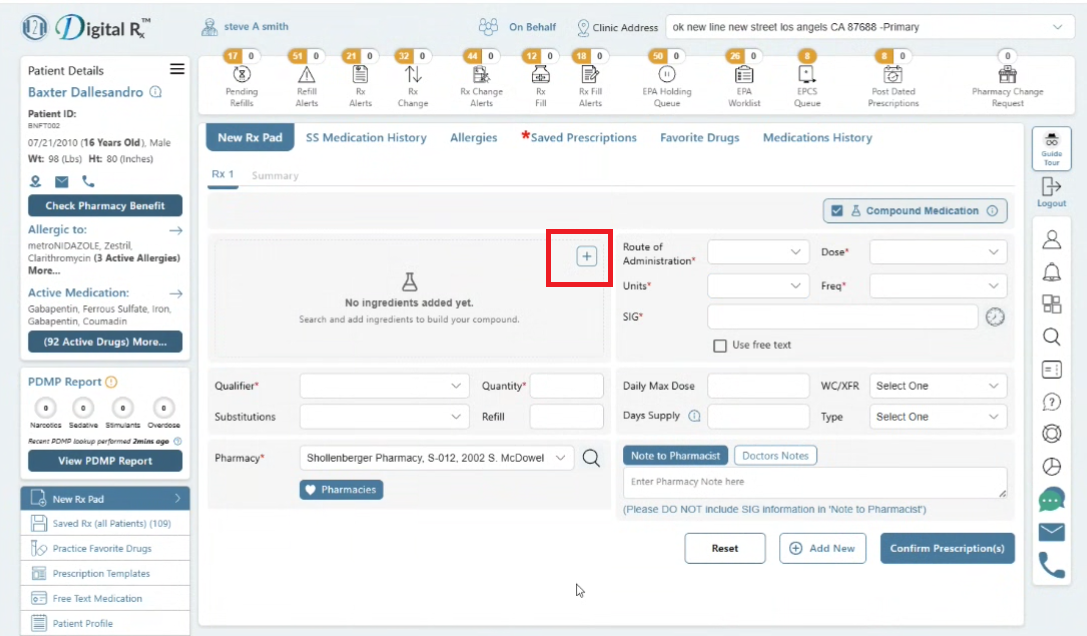
- The Compound Medication option is available directly on the prescription screen. [Please refer to the marked area in the screen print below.]
- On the New Rx Pad, the prescriber selects the Compound Medication option to initiate the compound medication workflow.
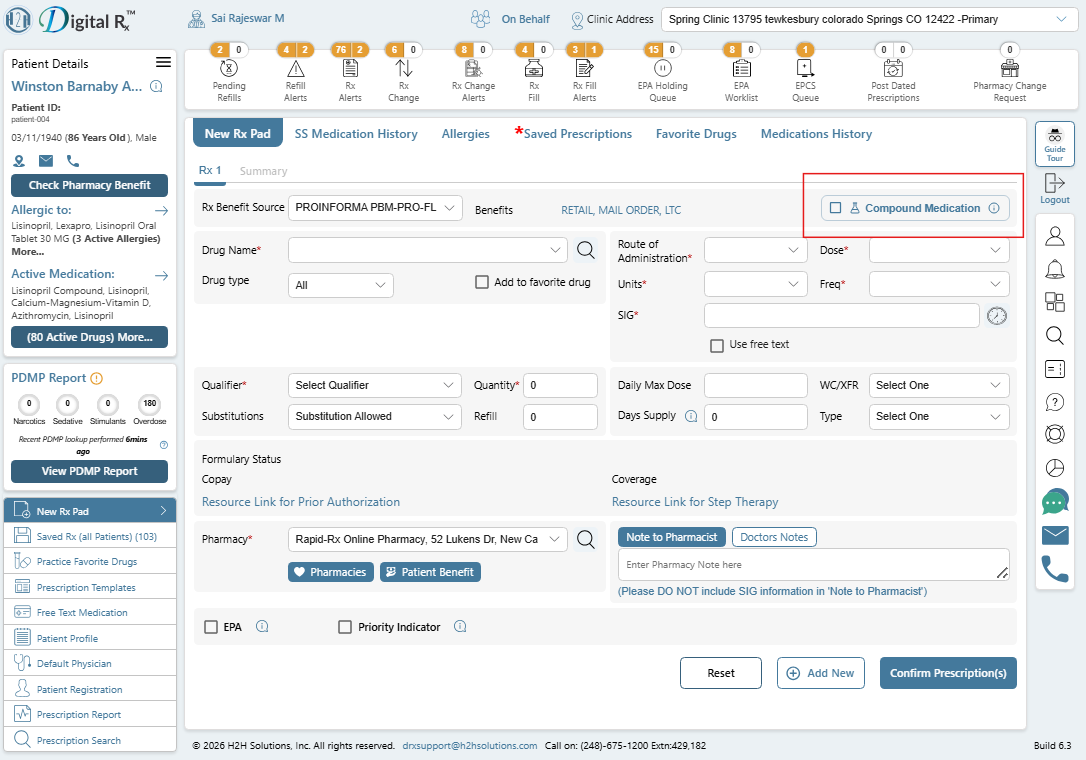
Upon selecting Compound Medication, the current New Rx Pad transitions to the Compound Medication Prescription screen. This initiates the compound medication workflow and allows the prescriber to create a compound medication containing multiple ingredients.
The prescriber clicks the “+” icon shown in the screen print below to open the Create Compound Medication dialog, where the prescriber can define and create the compound medication.
Step 4 – Create the Compound Medication
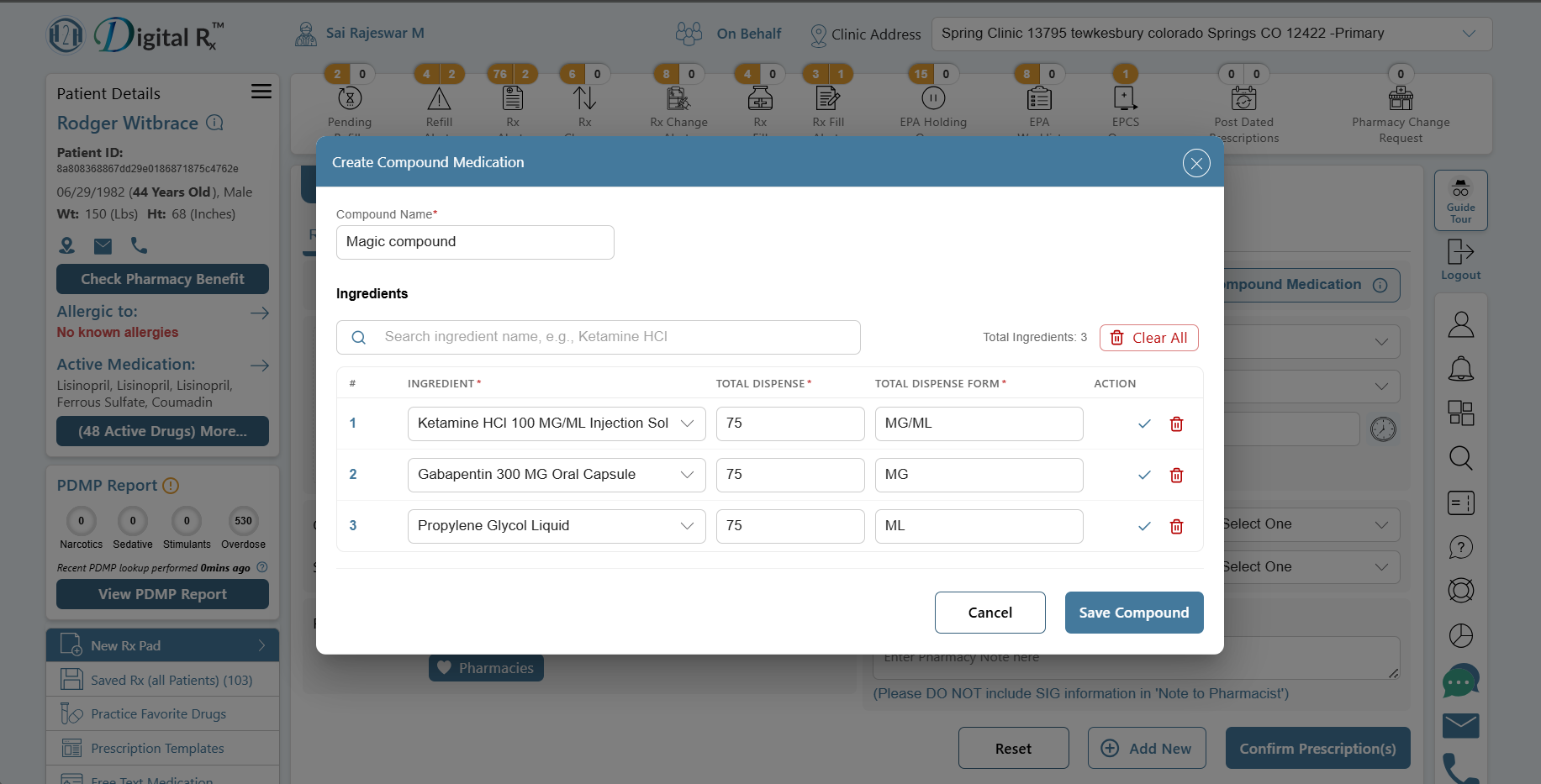
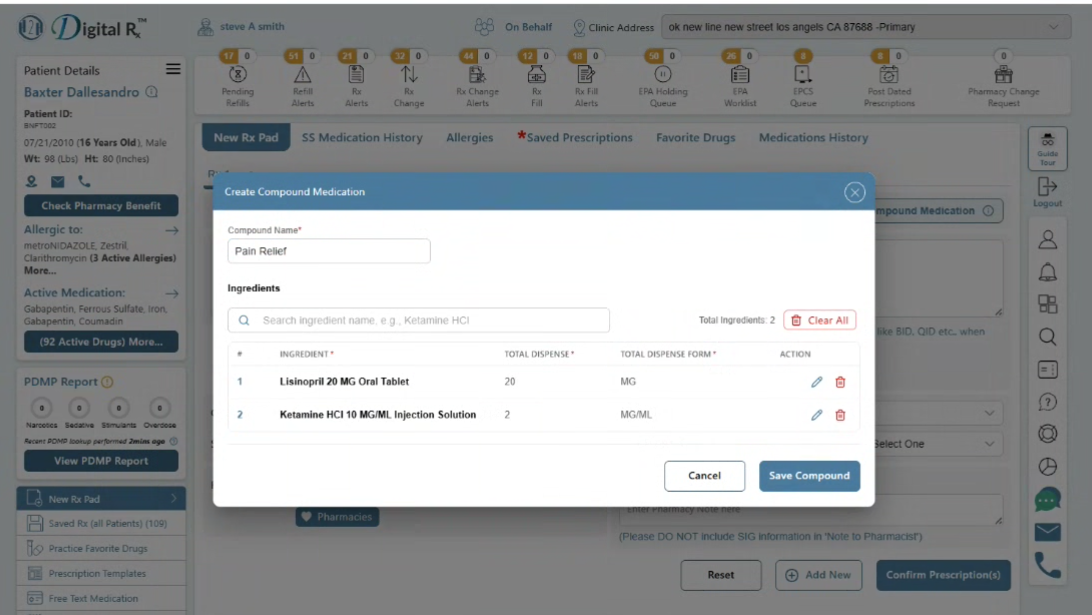
The Create Compound Medication dialog is displayed [Please refer to the screen print below].
The prescriber:
- Enters a name for the compound medication (e.g., “Pain Relief,” as shown in the screen print below).
- Searches for the required medication ingredients.
- Selects the required ingredients.
- Specifies the dispense amount and dispense unit/form for each ingredient, where applicable.
- Reviews the list of selected ingredients.
- Edits or removes individual ingredients, if required.
- Saves the compound medication by selecting Save Compound.
The application displays the total number of ingredients added to the compound. The demonstrated workflow in the screen print contains multiple ingredients, including Lisinopril 20 mg Oral Tablet, which is not a controlled substance, and Ketamine HCl 10 mg/mL Injection Solution, which is a controlled substance (Schedule III in the United States).
Ingredient Limit: The application supports up to 24 ingredients in a compound medication.
Step 5 – Review the Created Compound in the Prescription Screen
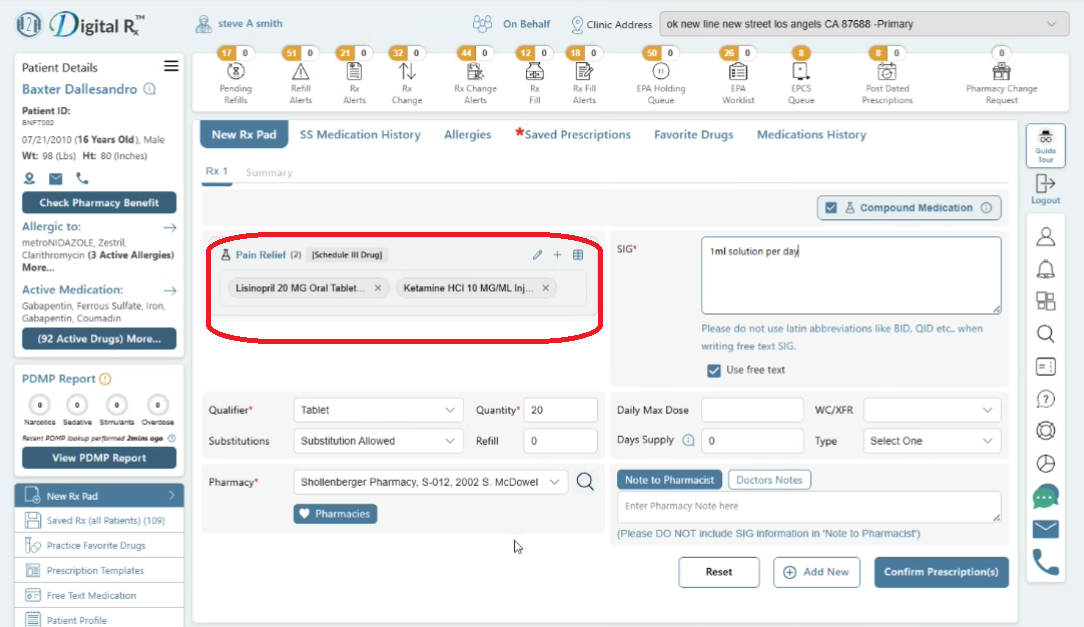
After the compound medication is saved, it is displayed on the prescription screen as a single prescription item along with its associated ingredients, as shown in the marked area of the screen print below.
The prescriber can review the compound name and the individual ingredients before proceeding with the remaining prescription details.
Step 6 – Enter Other Prescription Details
The prescriber completes the required prescription information for the compound medication.
The following information can be entered or selected, as applicable:
- Qualifier
- Quantity
- Refill
- Substitution
- Days Supply
- Type
- Route of Administration
- Dose
- Units
- Frequency
- SIG / Directions
The prescription quantity and days supply are entered based on the prescribed compound medication.
For SIG / Directions, the prescriber can select Use free text and enter the complete patient-specific directions. The application also displays guidance advising the prescriber not to use unsupported Latin abbreviations when entering free-text SIG instructions.
Select the Pharmacy:
- The prescriber selects the intended pharmacy from the available pharmacy options.
- The selected pharmacy is displayed on the prescription screen before the prescription is confirmed.
- The prescriber verifies that the pharmacy information is correct before proceeding.
Confirm the Prescription:
- After entering all required prescription information, the prescriber selects the Confirm Prescription button at the bottom of the screen.
Step 7 – Prescription summary Screen
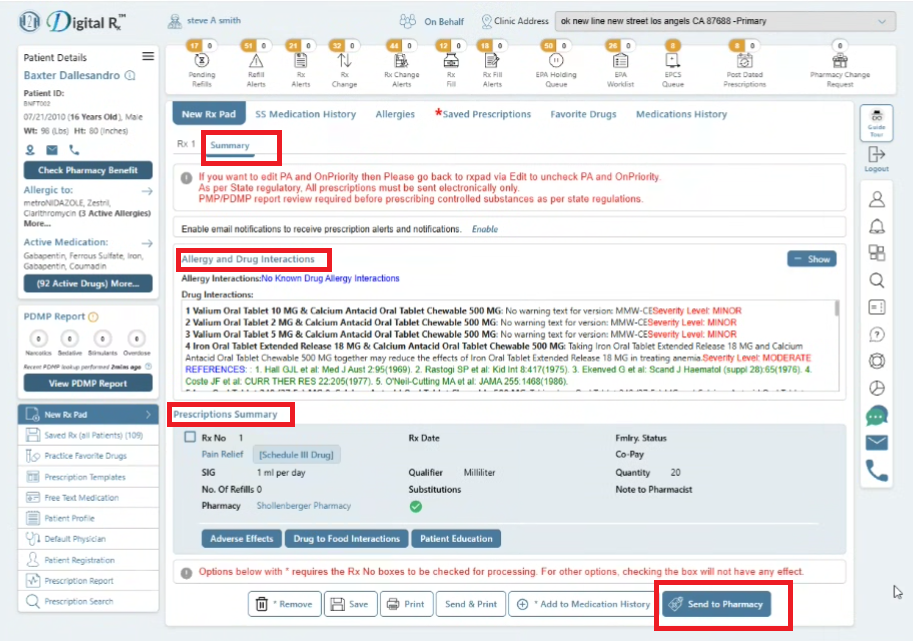
- The application validates the prescription and presents the Prescription Summary screen.
- The summary displays the compound medication, associated ingredients, SIG / directions, qualifier, quantity, refill information, selected pharmacy, and other relevant prescription details.
- The prescriber reviews the prescription information to ensure all details are accurate before proceeding with transmission.
| Note: Drug-Drug and Drug-Allergy Interaction Review
As part of the prescription confirmation workflow, the application performs drug-drug and drug-allergy interaction checks for the prescribed medication. The prescription summary includes an Allergy and Drug Interactions section that displays:
The prescriber reviews the displayed interaction information before proceeding with electronic transmission. In the demonstrated workflow, the application displays the allergy interaction status and multiple drug-drug interaction results, including the applicable severity information. This step provides the prescriber with an opportunity to review potential medication-related risks and take appropriate action before transmitting the prescription to the pharmacy. |
Step 8 – Send to Pharmacy
As soon as the prescriber selects the Send to Pharmacy button on the Summary screen, the application identifies that the compound medication contains a controlled substance and displays an EPCS alert prompting the prescriber to complete the required multi-factor authentication (MFA) before the prescription can be electronically transmitted.
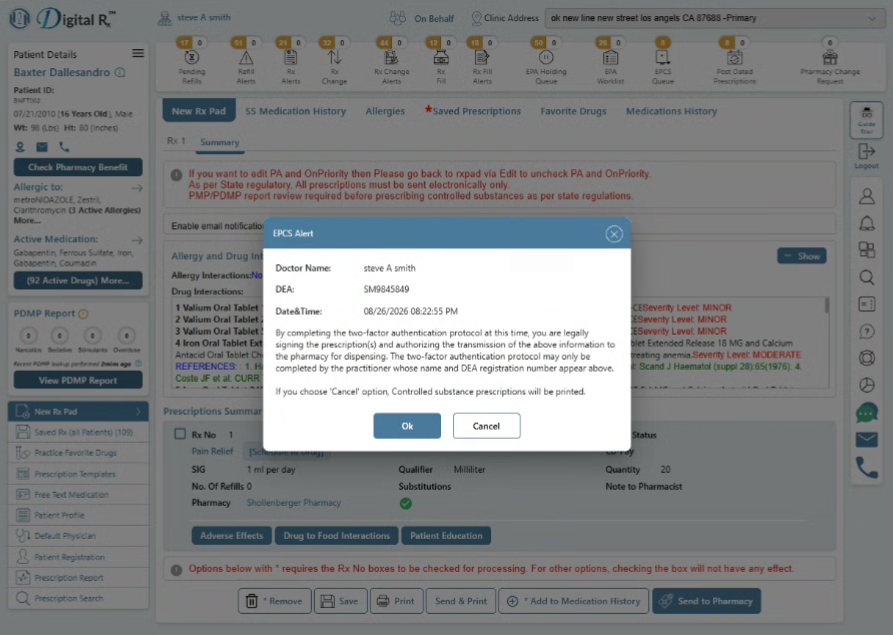
Upon selecting OK on the EPCS Alert pop-up, the application displays the Two-Factor Authentication screen, prompting the prescriber to authenticate by entering the six-digit OTP code, as shown in the screen print below.
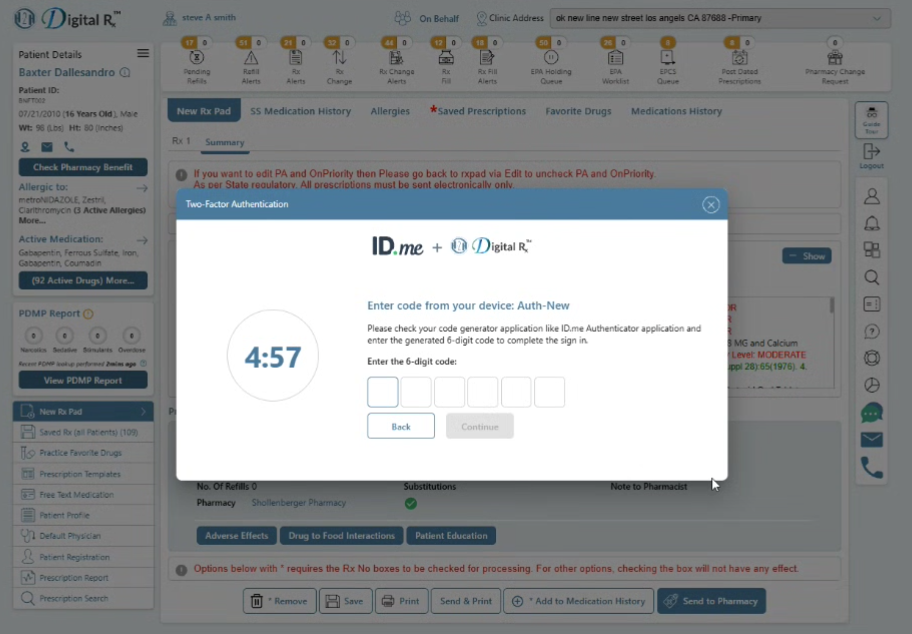
The prescriber:
- Opens the configured ID.me Authenticator application.
- Retrieves the current six-digit authentication code.
- Enter the code into the DigitalRx Two-Factor Authentication screen.
- Completes the authentication process.
- Proceeds with the electronic prescription transmission.
The application also displays the applicable controlled-substance review notification, including the requirement to review PMP/PDMP information before prescribing controlled substances, where required.
Step-9: Electronic Transmission to Pharmacy
- After successful prescription confirmation and, where applicable, completion of the required Two-Factor Authentication (2FA), the prescriber selects Send to Pharmacy.
- The application electronically transmits the compound medication prescription to the selected pharmacy.
- The prescription status is displayed to the prescriber following the transmission.
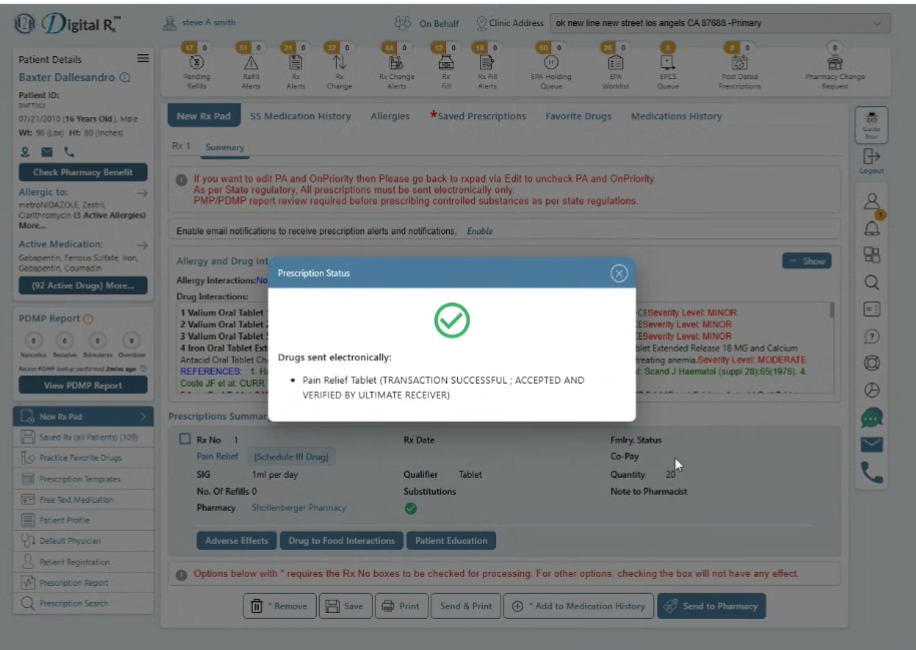
- Upon successful transmission, the application displays a confirmation indicating that the prescription was sent electronically and that the transaction was successfully accepted and verified by the receiving pharmacy.
A success message is displayed, as shown in the screen print below, once the compound medication prescription has been successfully transmitted to the pharmacy.
End-to-End Workflow Summary
The complete compound medication workflow is:
Login → Search Patient → Select Patient → New Rx Pad → Enable Compound Medication → Enter Compound Name → Add Ingredients → Save Compound → Enter Prescription Details → Enter SIG → Select Pharmacy → Confirm Prescription → Review Drug-Allergy/Drug-Drug Interactions → Complete 2FA (if Controlled Substance) → Send to Pharmacy → Receive Electronic Transmission Status
Business Value:
- Simplifies the creation of compound medication prescriptions
- Reduces manual effort when prescribing multiple ingredients
- Improves prescription accuracy and completeness
- Reduces prescription rework and pharmacy clarification requests
- Provides a standardized workflow for compound medication prescribing
- Supports safer and more consistent prescribing practices
- Enables electronic transmission of compound prescriptions to pharmacies
Highlights of the New Compound Medication Feature:
- Dedicated workflow for creating and prescribing compound medications
- Ability to create a compound medication containing multiple ingredients
- Ingredient-level medication search and selection
- Capture of individual ingredient strength, quantity, dosage, and dispense information
- Support for compound-specific prescription instructions and SIG / Directions
- Validation of required prescription information before transmission
- Consolidated display of all ingredients within a single prescription
- Guided review and confirmation of prescription details
- Support for required authentication when controlled substances are included
- Electronic transmission of compound medication prescriptions to pharmacies
- Clear validation, interaction, and error messaging
- Improved prescribing consistency and reduced prescription rework
The new Compound Medication capability in H2H Digital Rx provides a structured and standardized workflow for creating prescriptions containing multiple medication ingredients. By enabling providers to select, configure, review, and validate individual ingredients within a single prescription, the feature simplifies the compound prescribing process while improving prescription accuracy and completeness.
The guided workflow helps reduce manual effort, prescription rework, and pharmacy clarification requests while providing a consistent prescribing experience across providers and clinical teams. Ultimately, the feature enables a more efficient, accurate, and reliable electronic prescribing process for compound medications.