Pharmacy Transfer / Change Pharmacy Request
Sometimes a prescription is sent to a pharmacy the patient does not want to use. The Pharmacy Transfer feature lets the patient ask for a change of pharmacy from the patient portal. The request goes only to the responsible prescriber, who can approve it (the prescription is re-sent to the new pharmacy) or deny or ignore it (the prescription stays where it is).
Users and Systems
| Actor / System | Role in the flow |
|---|---|
| Prescriber (provider) | Writes prescriptions in the Digital Rx prescriber application and reviews patient change requests. |
| Patient | Receives prescription emails and uses the separate patient portal to request a pharmacy change link to portal will be provided in same email. |
| Pharmacy (old and new) | Receives the prescription. Only pharmacies on the approved list respond successfully. |
| Surescripts network | Carries prescription messages between prescriber and pharmacy. In-progress and final statuses depend on its responses. |
Key Terms
| Term | Meaning |
|---|---|
| Digital Rx (DRx) | The e-prescribing product, with a prescriber application and a separate patient portal. |
| Patient portal | Patient-facing site. Opened from the ‘View my prescription’ link in the email. Login is last name and date of birth. |
| Change Pharmacy | Screen where the patient selects a prescription and a new pharmacy to request a transfer. |
| Pharmacy Request icon | Icon in the top ribbon of the prescriber application that lists incoming change requests. |
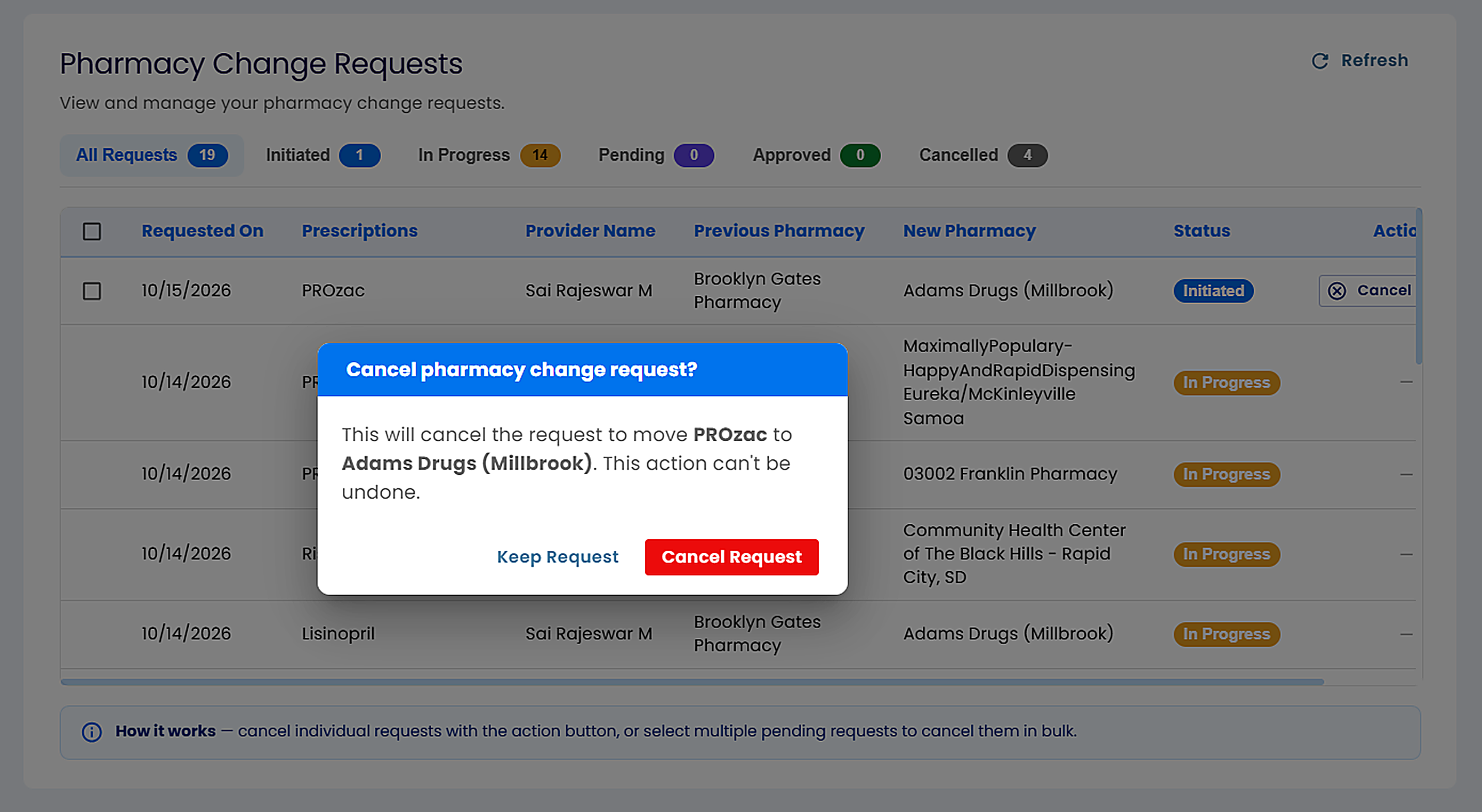
| Initiated | The patient has started the request. The patient can still cancel it. |
| In Progress / Pending | The request is being processed or is waiting for a response. The patient cannot cancel it. Driven by Surescripts. |
| Approved | The prescriber accepted the request. The old prescription is cancelled and a new one is sent to the new pharmacy. |
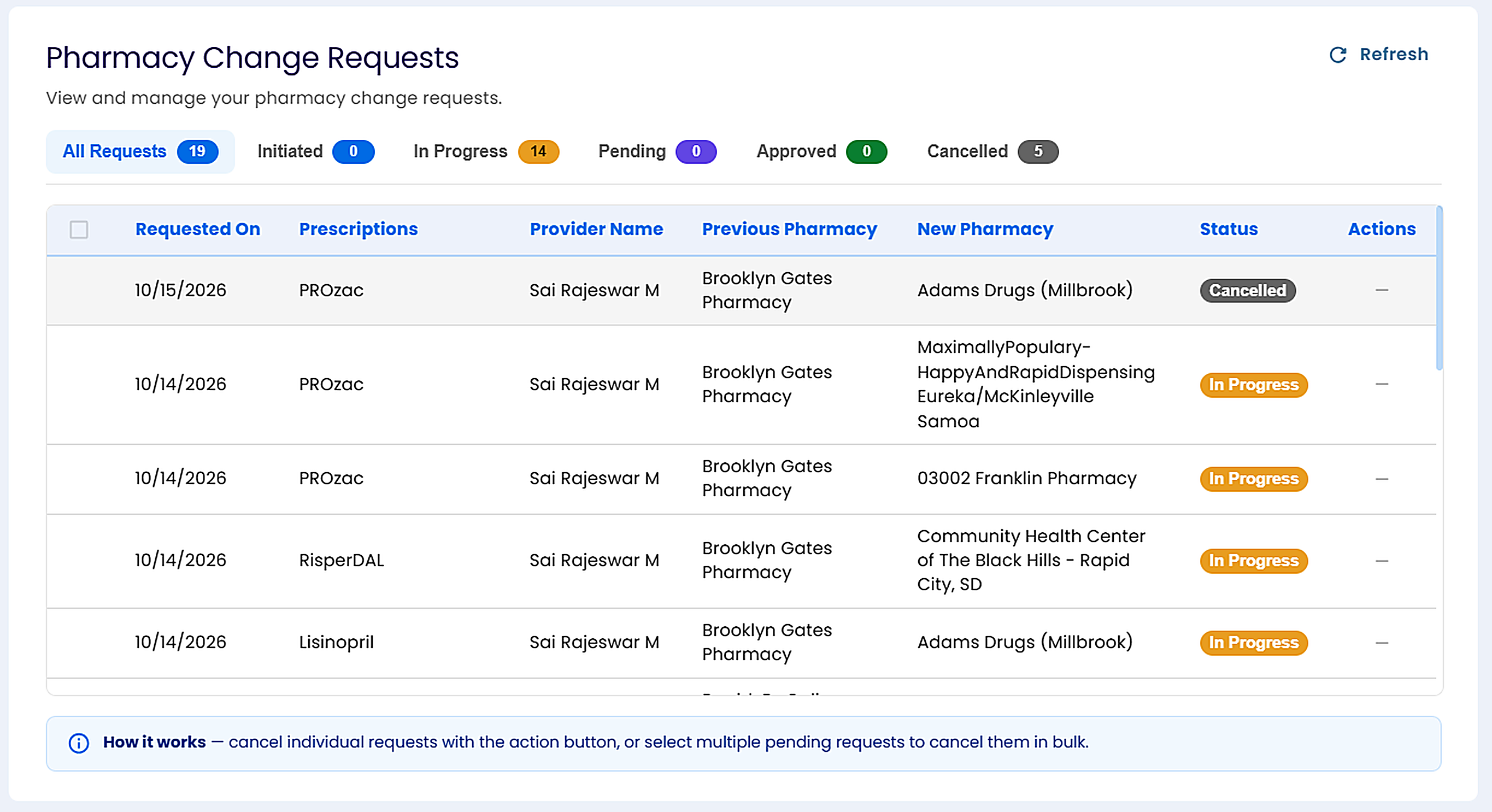
| Cancelled | The request was ended, either by the patient before submission, or by the prescriber denying it. |
Prerequisites
- The feature is enabled on the environment being used.
- A prescriber login exists and can write prescriptions.
- The patient has an email address and prescription alerts & notifications are turned on.
- The patient must have at least one prescription at a pharmacy.
Process Flow
Part A: Prescriber sends the prescription
- Log in to the DigitalRx prescriber application.
- Search for the patient and open the patient profile.
- If the patient has no email, enter it in the patient profile, or in the ‘Prescription alerts and notifications’ section while prescribing.
- Search for a drug and select it.
- Search for a pharmacy and select one from the list.
- Send the prescription. Repeat for more prescriptions. Prescriptions sent to different pharmacies appear in separate pharmacy groups in the patient profile.
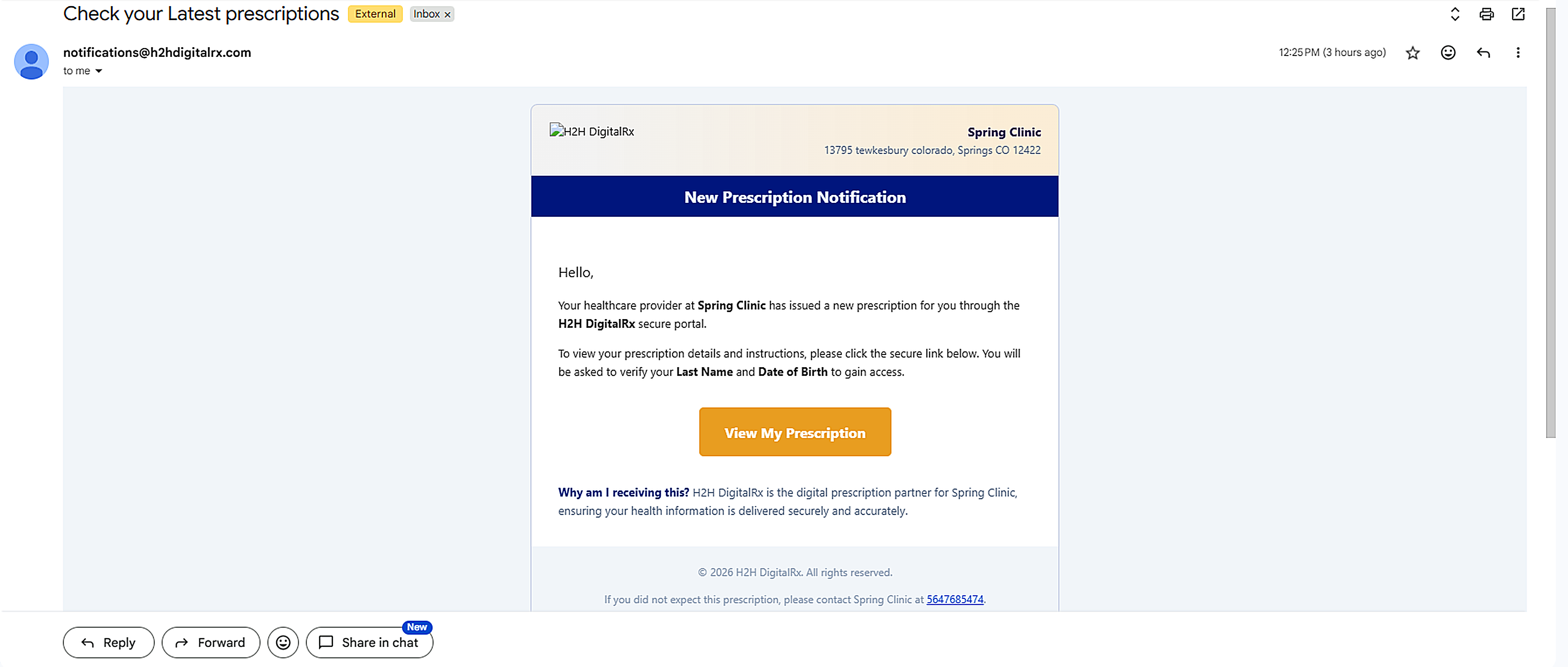
- Patient receives an email with a ‘View my prescription’ link.
Part B: Patient logs in to the portal
8. Click ‘View my prescription’ in the email. The patient portal opens.
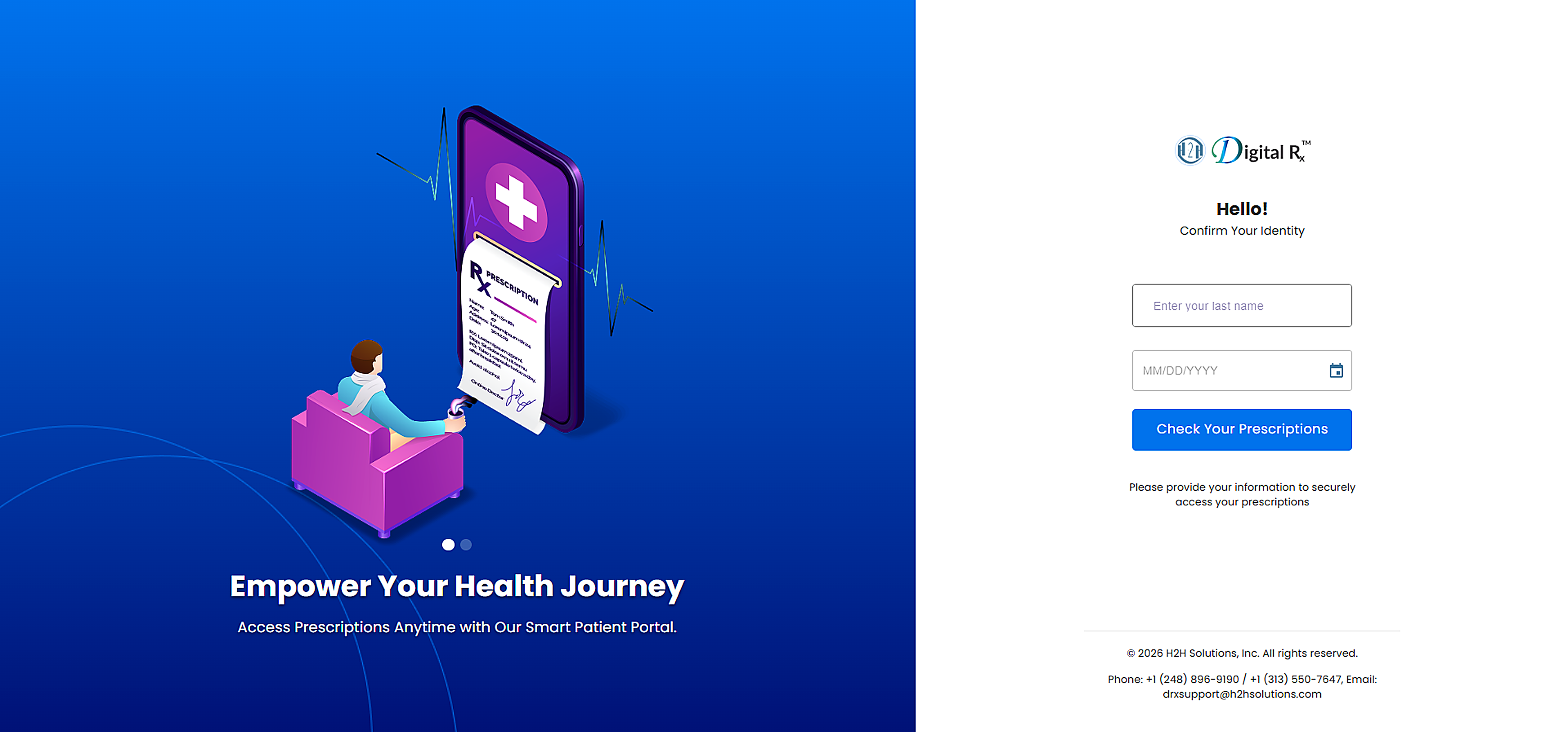
9. Log in with the patient’s last name and date of birth.
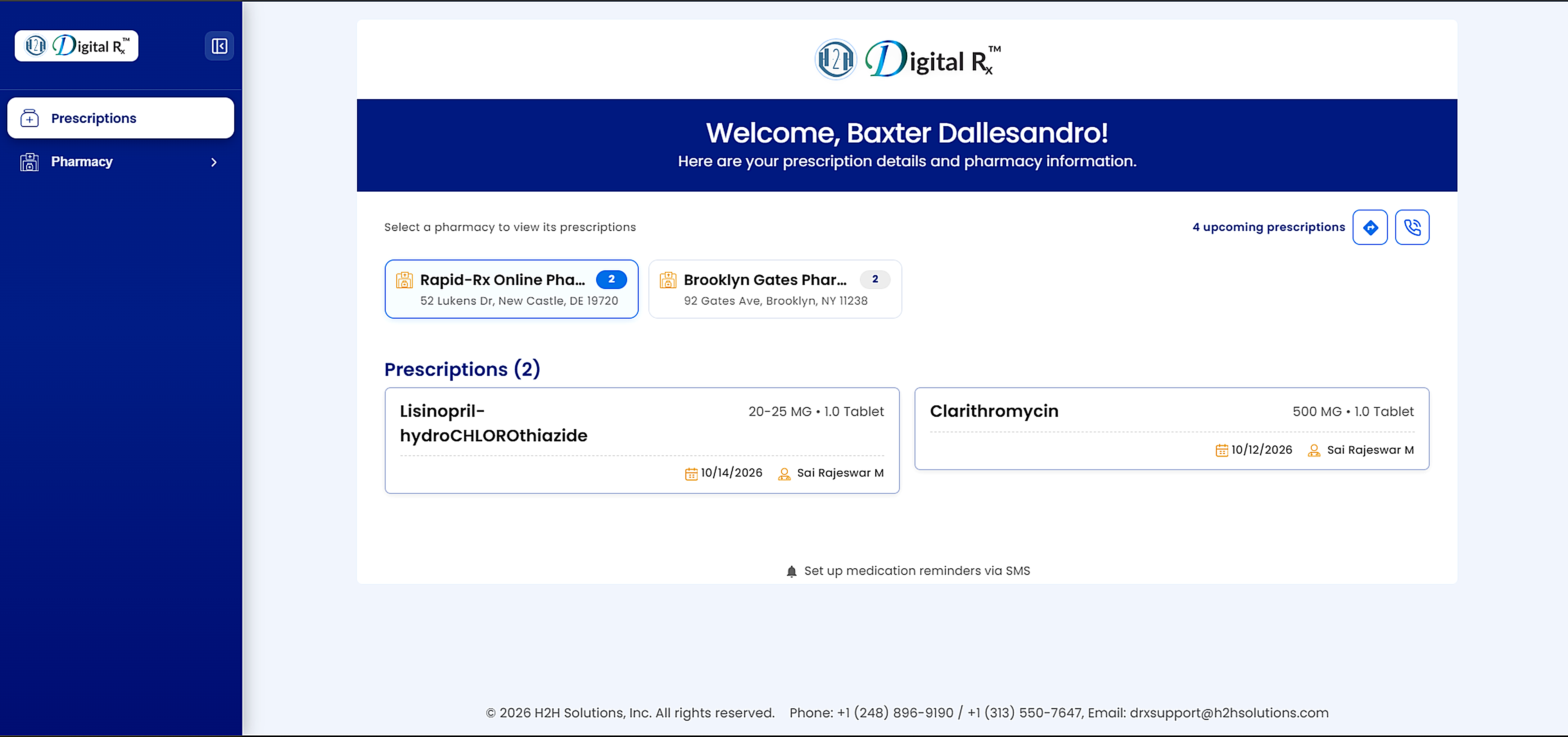
10. Review the two sections: Prescriptions (all prescriptions with dates) and Pharmacy Details (current pharmacy).
Part C: Patient requests a pharmacy change
11. In the left-hand menu, click Pharmacy, then Change Pharmacy.
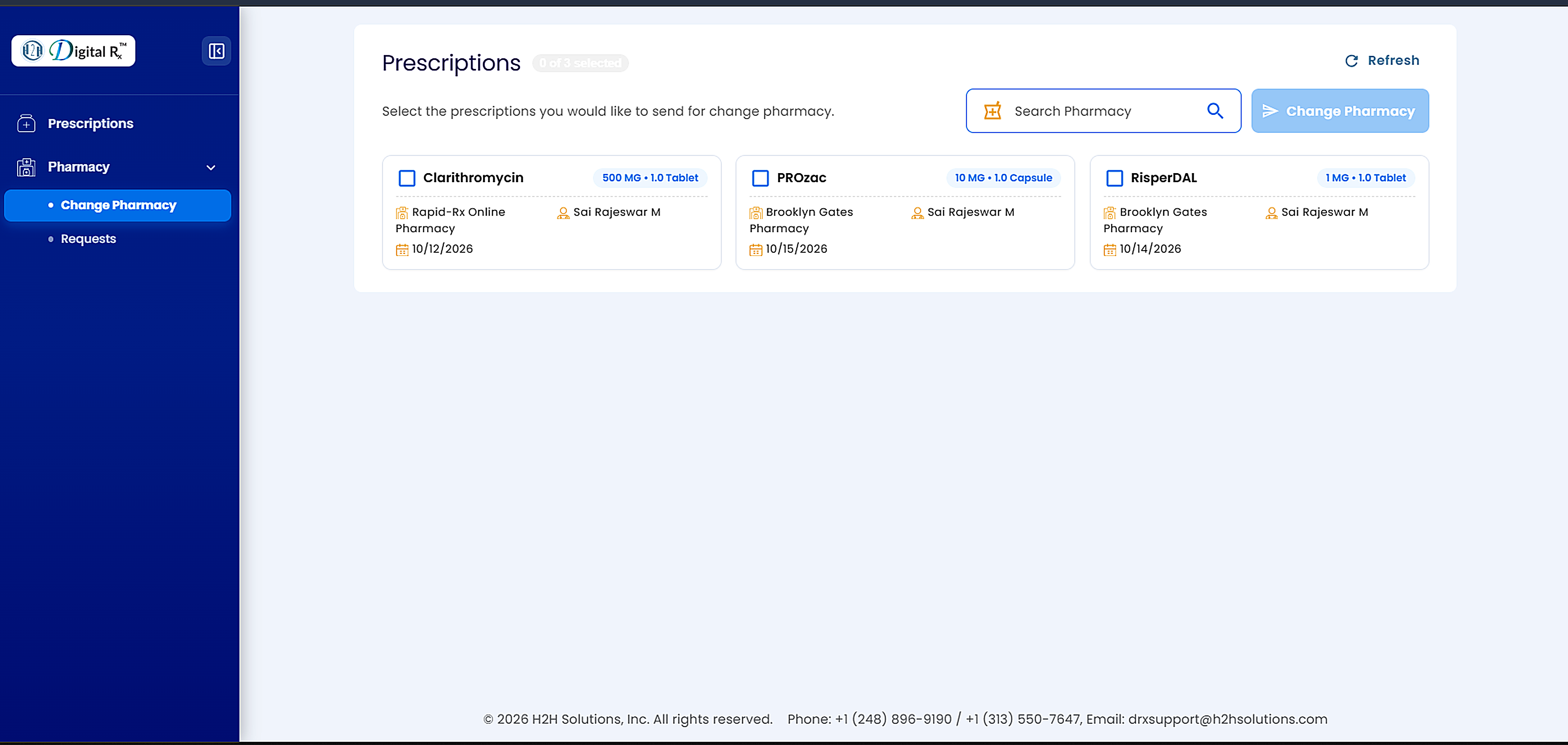
12. Select the prescriptions to move.
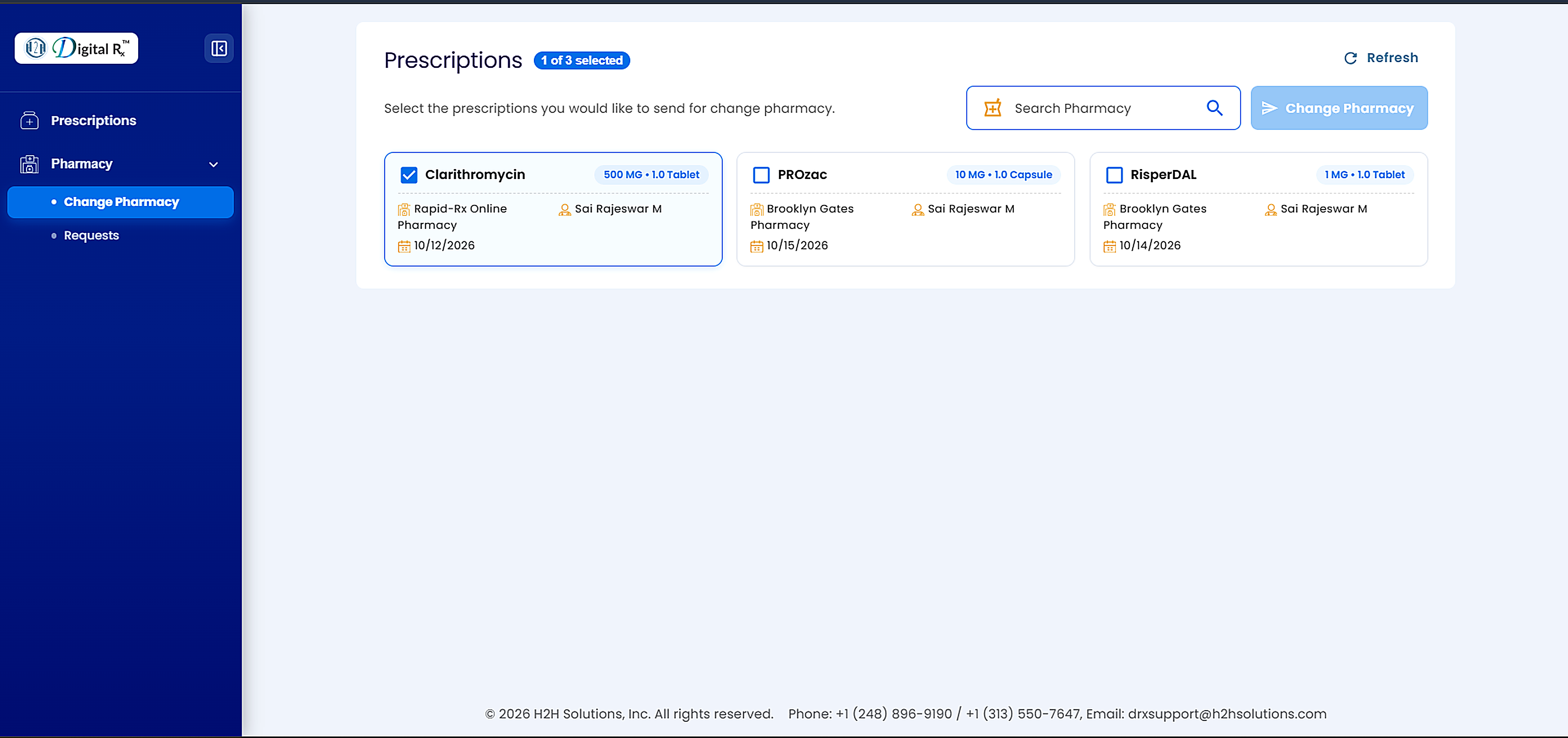
13. Use the pharmacy search at the top to find the new pharmacy, and select it.
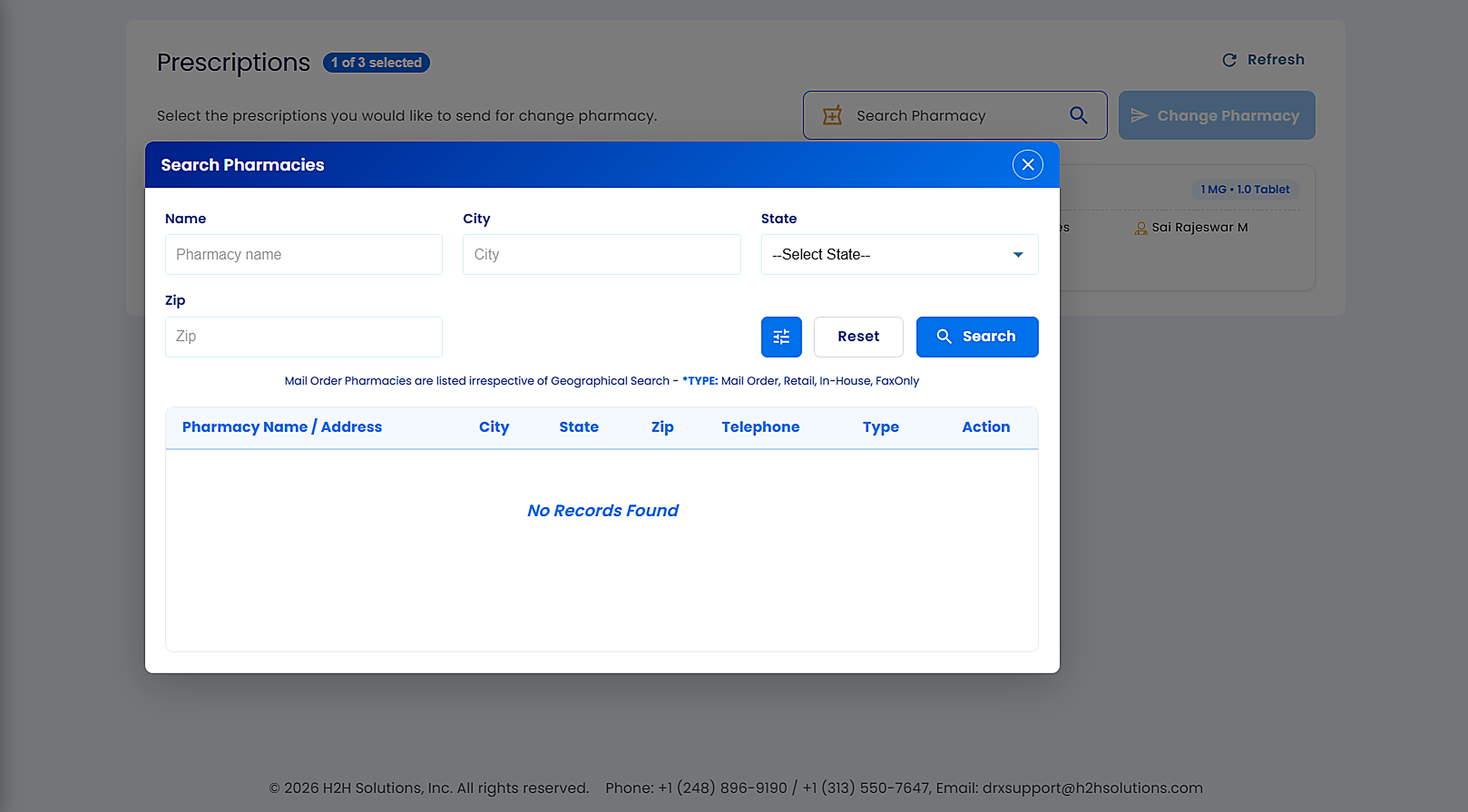
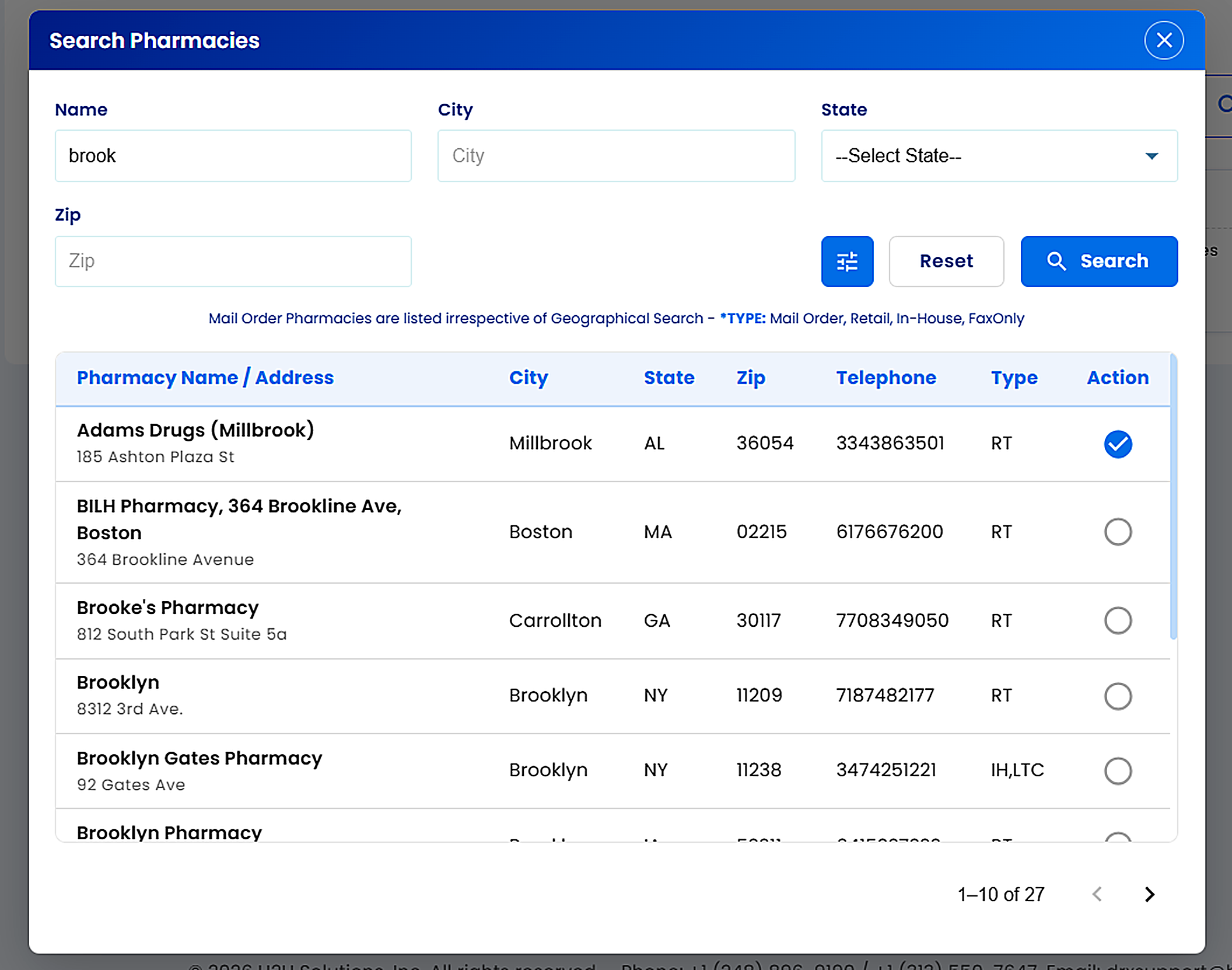
14. Click Change to submit. The request is sent to the responsible prescriber only, not to every provider in the practice.
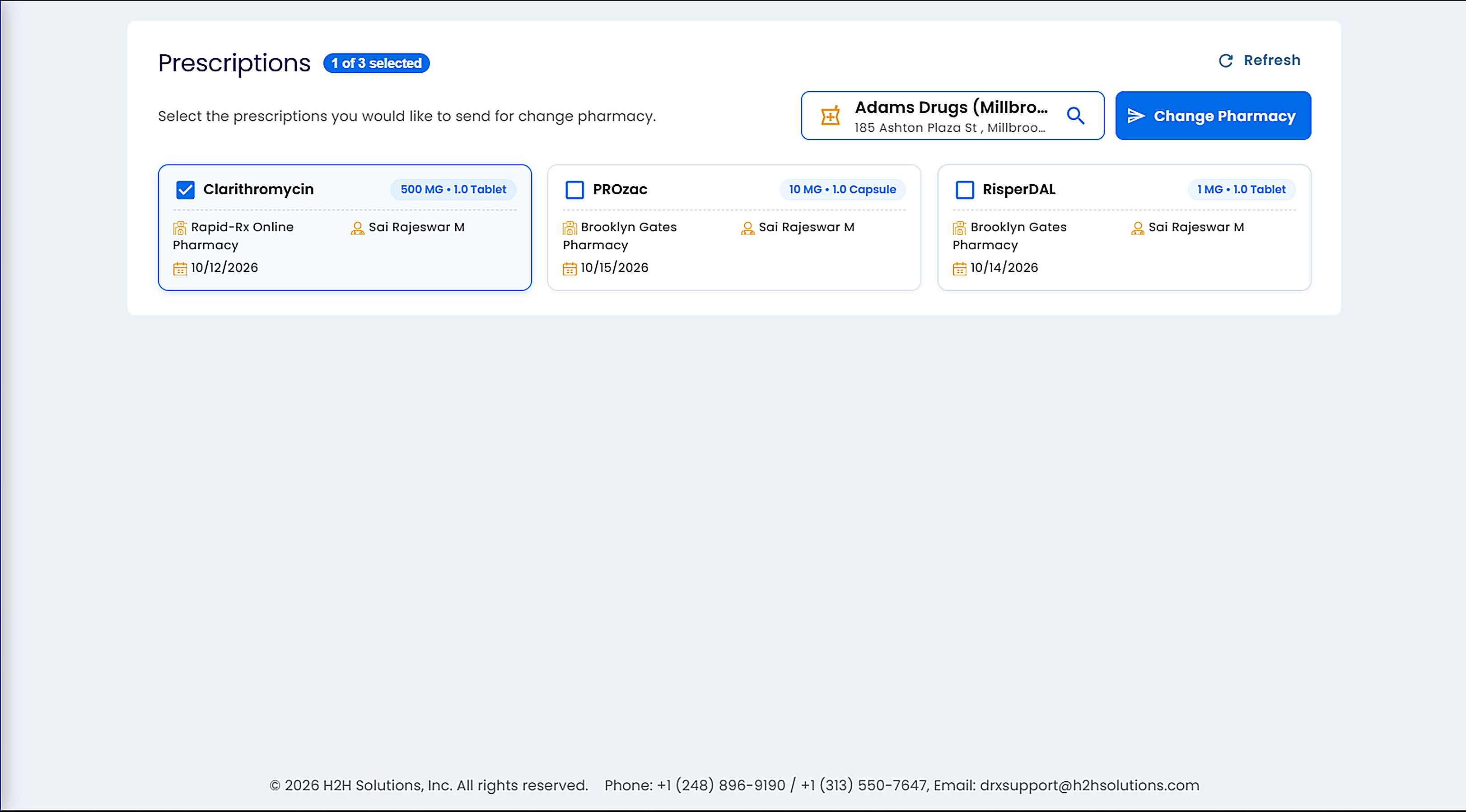
15. The request appears in the patient’s request list with the date, medication and status ‘Initiated’.
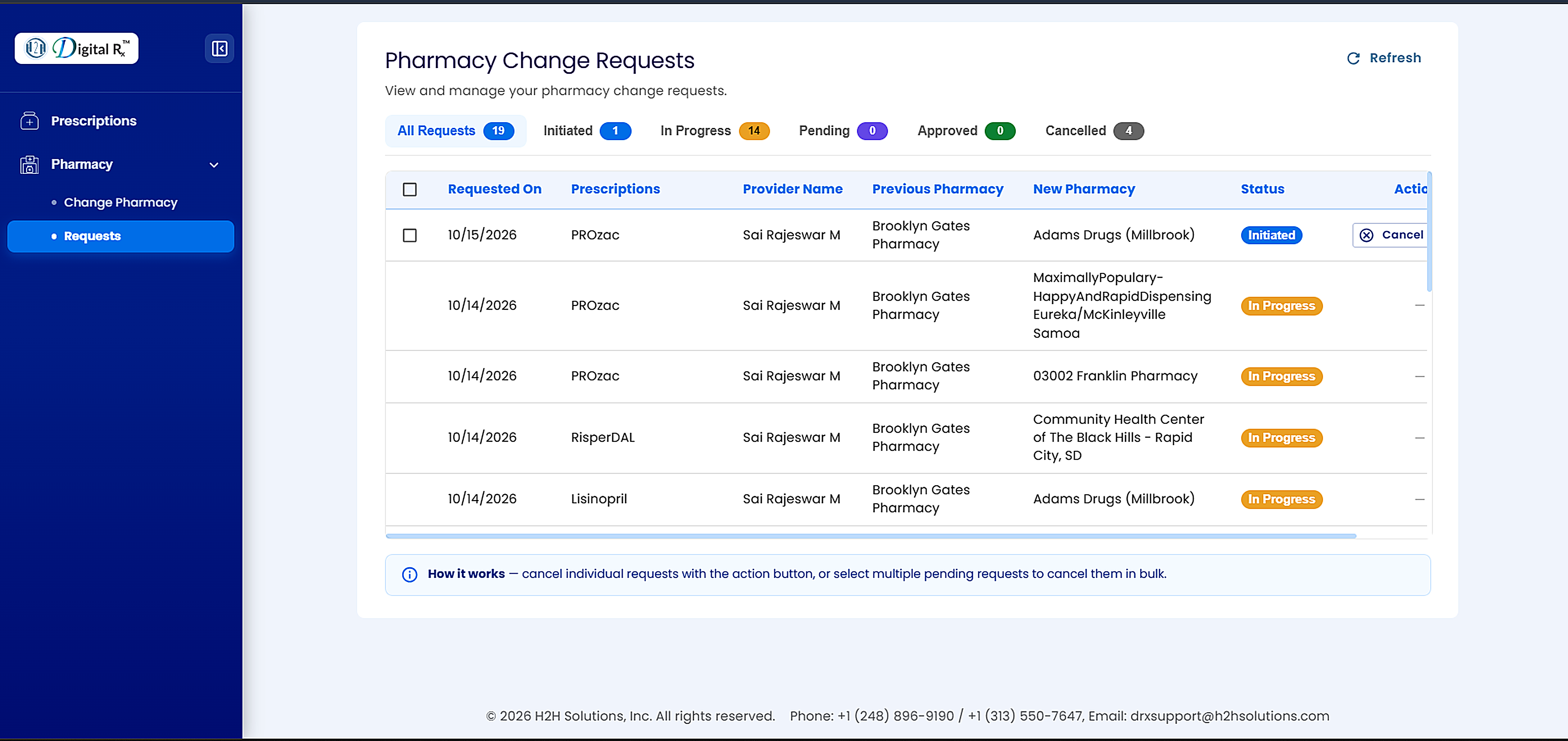
16. While the request is Initiated, the patient can cancel it using the Cancel option. Once it moves to In Progress, Pending, Approved or Cancelled, it cannot be cancelled by the patient.
Part D: Prescriber reviews the request
17. Log in to the prescriber application. Click the Pharmacy Request icon in the top ribbon.
18. Review the request: patient, prescription, current pharmacy and requested pharmacy.
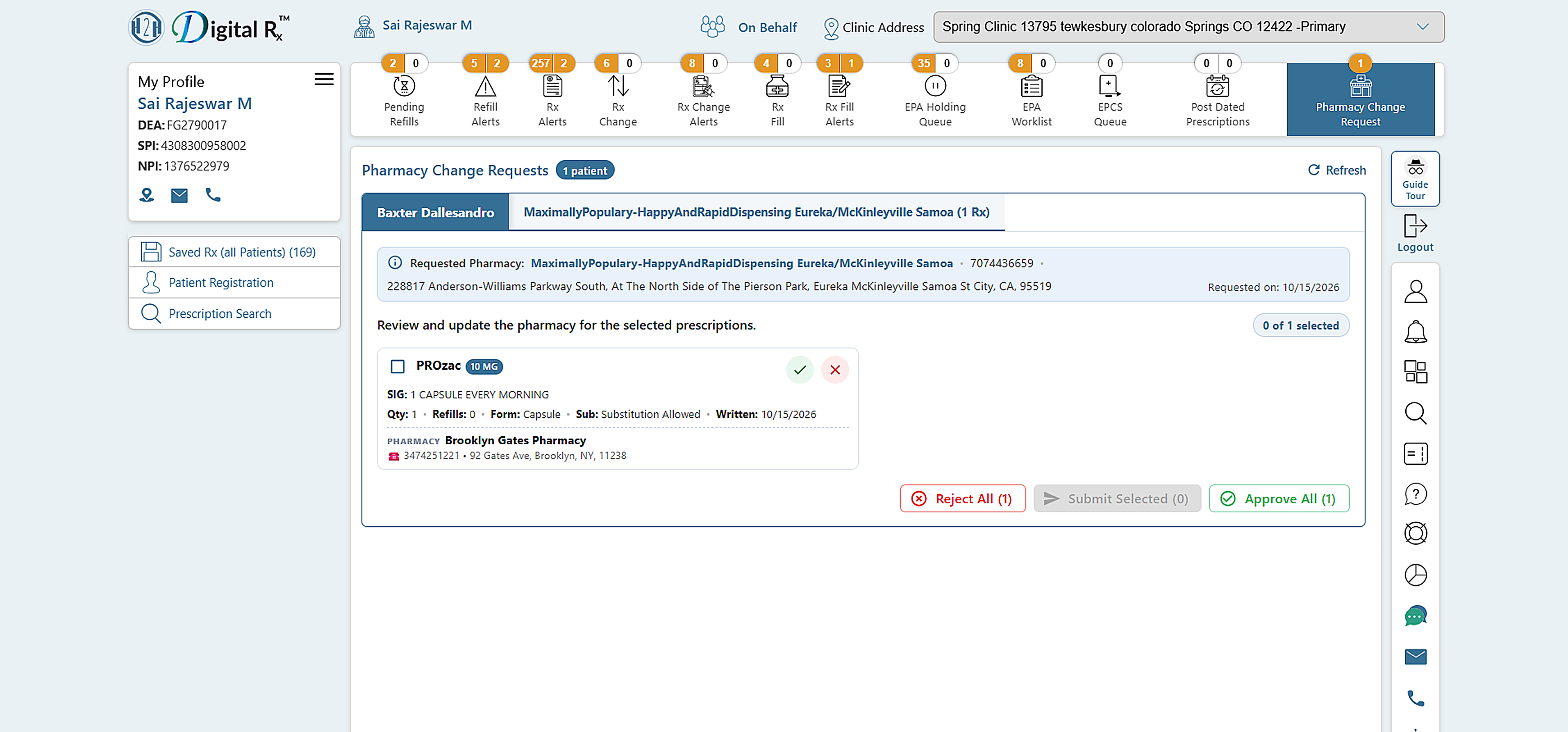
19. If the list does not show the new request, refresh the screen
20. Choose one action:
- Approve: the prescriber accepts and sends the request to the pharmacy. The old prescription is cancelled and a new prescription goes to the new pharmacy.
- Deny: the request is cancelled. The prescription stays with the original pharmacy.
- Ignore: the prescriber does not act on the request.
Part D2: Approving a controlled substance requires 2FA
- Provider is dealing with controlled drugs will be required to complete 2FA even during pharmacy transfer just like when prescribing on rxpad.
Denying a controlled substance does NOT need 2FA. Only approval does. If 2FA fails or is not completed, the pharmacy does not change and the request stays in the same status in the Pharmacy Change Request list. It must not be deleted.
- Normal (non-controlled) drugs are approved or denied with no 2FA step.
Part E: Tracking the result
- The request moves through the statuses: Initiated, In Progress, Pending, Approved or Cancelled.
- After approval, the Pharmacy Details section shows the new pharmacy and the prescriber history shows the old prescription as cancelled.
Part F: Checking the medication history after the decision
Check this for every approved or denied request, for both normal and controlled drugs, to verify the end-to-end flow.
- Open the patient’s medication history in the provider application.
- Approved: the new prescription appears in Active Medications with the new pharmacy name, active Y and status E*S. The old prescription (with the original pharmacy, for example Brooklyn Pharmacy) moves to Inactive Medications with active N and the cancelled status E*S*C.
- Denied or rejected: the original prescription stays in Active Medications with the original pharmacy. Nothing is added to Inactive Medications. The status for Denied should be E*S*D.
Status Reference
| Status | Patient can cancel? | Prescriber sees it? | Meaning |
|---|---|---|---|
| Initiated | Yes | No | Request started and not yet processed |
| Awaiting 2FA (controlled drugs) | No | Yes | Approved but 2FA not yet completed. Pharmacy not changed. Not deleted if 2FA fails. |
| In Progress | No | Yes | Being processed through Surescripts |
| Pending | No | Yes | Waiting for a response or action |
| Approved | No | Yes | Prescription moved to new pharmacy |
| Cancelled/ Denied | n/a | Yes | Denied by the prescriber or Surescripts, or canceled by the patient |
Business Rules
- A request goes only to the responsible prescriber of the prescription, not to all providers in the practice.
- The patient can cancel only while the request is Initiated.
- Approval cancels the original prescription and creates a new one at the new pharmacy. The patient does not receive the medication from the old pharmacy after approval.
- A denied request leaves the original prescription active at the original pharmacy.
- Only pharmacies on the approved list will respond successfully.
- Controlled substances: approval requires 2FA; denial does not. Pharmacy changes only after 2FA succeeds.
- A failed or abandoned 2FA keeps the request in its status; it is not deleted and can be retried.
- Approved requests: new Rx in Active Medications, old Rx in Inactive with cancelled status. Denied or rejected: original Rx stays Active.
- Change Pharmacy is a patient-initiated request. Patient-side refill requests are a separate future feature and are not covered here.